When you change gateways, those data reference points won’t automatically follow the subscription to a new payment setup. In some cases, you’ll need to update payment tokens manually or ask subscribers to update their payment method. This depends largely on the payment gateway you use.
Map product data before importing, then spot-check it afterward. A subscription that renews on time but delivers the wrong product will frustrate customers.
Moving a subscription into WooCommerce Subscriptions doesn’t necessarily tell your old platform to stop billing — and you don’t want customers to be billed twice. How you shut off renewals depends on the system, so verify the process and add it to your checklist.
- Enter subscribers manually.
- Import subscriber data with a CSV file.
- Build a custom migration process.
Migrating a subscription and moving its saved payment method are different considerations. You can successfully import the customer, product, billing schedule, and next renewal date, but you’ll need to do a bit more work to set up subscription renewals.
| Pathway | Best for | How to do it |
| Manual subscriber migration | An operation with fewer than 100 subscribers. This takes more hands-on work, but with a small subscriber base, it can be simpler than preparing and validating an import. | Add each of your subscriptions manually via the Add Subscriptions screen in your dashboard.WooCommerce Subscriptions has a Staging Mode that disables automatic payments on a duplicate site. |
| Bulk CSV import | When you have hundreds or thousands of subscriptions. This process works best when the source data is consistent and the required payment gateway information can be carried over. | Via the WooCommerce importer extension (which is currently in public beta). You can learn more, download, and test the extension via the Subscriptions CSV Importer GitHub Repository.About |
| Custom migration scrips | When migrating subscribers calls for special data or billing handling, custom scripts are the way to go. Custom code is best when the standard importer can’t cleanly handle the migration due to complexity, like when you need to bring over specific records or if you work with a non-standard payment gateway. | The Subscriptions developer API gives custom migration script functions for creating those subscriptions and setting the renewal data for each one. Instead of forcing unusual source data into a CSV template, the script translates each record into the right WooCommerce subscription as the tool imports it.If one isn’t provided, WooCommerce can calculate a date from the subscription’s start or trial date and billing schedule. For an existing subscriber base, compare imported next-payment dates with the source system so customers stay on the schedule they already expect. |
There are 3 main ways to move subscribers into WooCommerce Subscriptions:
If something looks wrong, start with one affected subscription and check the associated order notes. Then look at WooCommerce → Status → Scheduled Actions for failed or stuck renewal actions.
Shani is a Developer Advocate for WooCommerce. You can find her in the WooCommerce Community Slack and on the Woo Developer Blog, discussing the latest and greatest in WooCommerce!
Examples of migration paths for different gateways
With a tool like Import Export Suite, you can export subscriptions to a .CSV file, filter them by payment method, and then upload the file to your email marketing tool to email them in bulk.
The biggest sign of a successful migration is silence from customers. Do it right and you’ll avoid support tickets about duplicate charges, frustrated emails, and the scramble to explain what happened to someone’s renewal.
A smooth transition is entirely achievable by utilizing the right planning. With WooCommerce Subscriptions, this comes down to choosing the right migration method and checking the details before you go live.
In the CSV importer, each subscription’s line items must point to products that exist in the new store. Product IDs from the old system won’t help if they don’t match the right products in WooCommerce.
shanibanerjee
- Has the old system stopped charging customers?
- Do imported subscriptions point to the right products?
- Are the next payments scheduled for the right day?
Make sure only one system can collect the next renewal
As a final step, pick subscriptions with different products, billing schedules, statuses, and payment methods, and compare the imported record with the source.
Verify that subscriptions are connected to the right products
A successful subscription platform migration is one where renewals, fulfillment, and billing are never interrupted, and your customers don’t even know something has happened.
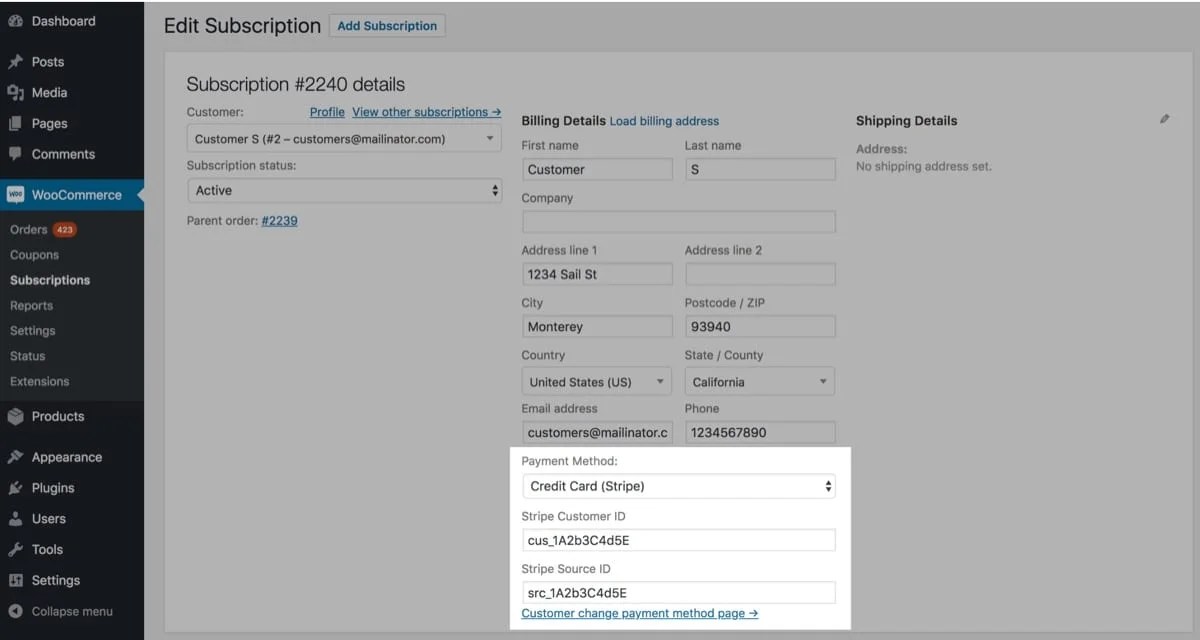
Stripe is a good example of what clean payment gateway mapping looks like. WooCommerce Subscriptions uses a Stripe Customer ID and Payment Method ID to connect a subscription to the card Stripe has stored.
Check the next payment date
A failed renewal doesn’t always mean the migration failed. Cards expire, and banks decline payments every day. But if failures cluster around migrated subscribers or a particular payment method, that’s your sign to dig deeper.
For example, if a saved payment method like PayPal Standard can’t be carried over, send those subscribers a separate email before their next renewal.
Confirm your live store is taking payments
Here’s an email template you can adjust based on your situation:
WooCommerce Subscriptions needs to know how often a customer pays (weekly, monthly, annually) and when each customer pays next. The CSV importer accepts an explicit next_payment_date.
Don’t rely on the word “staging” in a URL. WooCommerce Subscriptions determines the URL based on several factors, so always double-check.
Spot-check the migration
Once the migration is in your rearview mirror, WooCommerce Subscriptions takes over the recurring work. It automates renewals, includes an automatic failed-payment retry system, supports recurring payments through 25+ compatible gateways, and lets customers update payment details through self-service.
Use the importer’s Test Mode to validate each row before creating subscriptions, so you can fix mapping errors and warnings first.
If your old system already stores those IDs in a compatible format, you can connect them to the migrated subscription. If it stores them differently, you’ll need to translate that data or ask customers to update their payment information.
A successful import doesn’t mean you’re ready to turn on renewals. Before you go live, there are a few important questions to ask:
Your first step? Identify the migration path that best fits your subscriber base, payment gateway, and data structure.
Ensure each subscriber is charged once, by the right system, on the right date. You can also confirm that each renewal creates the expected order and leaves the subscription in the correct status.
You can connect each one to the right customer, product, billing schedule, and payment method.
WooCommerce stores each subscription as a WC_Subscription object, an extension of the standard WooCommerce order object with additional data for things like billing schedules and next payment dates.
The goal isn’t merely to see that 2,000 rows became 2,000 subscriptions. Spot-check enough subscriptions to confirm details like product ID, payment method, status, and next renewal date.
WooCommerce also keeps gateway and scheduled-action logs under WooCommerce → Status → Logs, which can help pinpoint whether the problem happened before the charge, at the payment gateway, or afterward.
Explain what changed, what they need to do, and when they need to do it.
Before launch, check WooCommerce → Status and confirm the production store is in Live Mode and any testing copy is in Staging Mode.
While subscriber count matters, focus on how cleanly your existing subscription data fits the new system.
Subject: Please update the payment method for your [Brand] subscription
We’ve moved to a new subscription management system to better serve our customers.
Your subscription is still active, but we weren’t able to carry over the saved payment method used for automatic renewals.
Please update your payment method before your next renewal on [date] to continue receiving expected orders:
[Button/link: Update payment method]
Your products, pricing, and renewal schedule haven’t changed.
Questions? Reply to this email and we’ll help.
That means that you’ll either need to allot time to manually reattach each subscription to its payment method or prompt subscribers to update it themselves from My Account → Subscriptions.
Subscribers whose payment information carries over cleanly during migration shouldn’t need to do anything. Focus your communications on the customers who need to take action.


PayPal requires a bit more work. You can’t import existing PayPal Standard subscriptions into WooCommerce Subscriptions. PayPal Standard relies on payment notifications tied to the original site, and PayPal doesn’t reliably let that connection move with the subscription.
That’s because payment processors don’t hand WooCommerce a customer’s card number. They store cards securely and provide payment tokens that point back to the stored card. WooCommerce Subscriptions requires the right payment token, along with any other gateway-specific payment data, to tell the processor which saved payment method to charge.
A migration takes care and attention, but the payoff is a subscription operation that’s easier to manage and gives customers fewer reasons to notice the machinery behind it.